
News
New Version Released (October 2026)
iOS ver 8.0.0 / macOS ver 8.0.0 is now available.
Highlights
- Send from AI (MCP support) — Send what you discuss with Claude, ChatGPT, or other AI straight to your ThinkSpace inbox. Turn an incoming note into a card as it is, or pick just the part you need (setup)
- “Explain” tool — Talk through your map out loud and it's transcribed and saved on the spot. Explaining is how you check your understanding and make it stick. Export what you explained and use it in other tools
- Floating panels — Memos and the card box can now be resized, moved, and pinned freely
- Paste button — Copied something in another app or on another device (Mac, iPad, iPhone)? One tap turns it into a card
Also in this release
- Camera tool: snap your notebook or whiteboard and turn it into cards
- Save text and URLs to your inbox from the share sheet
- Better recognition of hand-drawn rectangles and circles
- New text font that sits well with handwriting (Klee One)
- Redesigned first-launch guide
- A more satisfying completion animation
- Easier to adjust the drawing area in the card editor
- Fixes for crashes and stability under heavy load
See Getting Started for the recommended flow, including the new features, and Instructions for how each tool works.
Updated Terms of Service (September 14, 2026)
We have updated our Terms of Service as of September 14, 2026. This revision mainly removes clauses about features that are no longer offered and clarifies wording. Key changes:
- Removed the clauses about shared canvases and invitation codes (these features were discontinued in the new version)
- Simplified the prohibited actions so they clearly describe how the service may be used
- Added an “In plain language” summary at the top of the terms
- Reworded awkward translations in the English version (the Japanese version remains the governing text and its substance is unchanged)
None of these changes are to your disadvantage, and no re-consent is required. The updated terms take effect on September 28, 2026. Full text: Terms of Service.
New Release and Updated Terms of Service (August 2026)
iOS ver 7.1.0 / macOS ver 4.1.0 is now available.
Highlights
- New purpose-driven onboarding — pick a theme and start from a ready-made map that gives your thinking a foundation
- Paste long text → summary card — copy an answer from ChatGPT or any AI chat and paste it in; it becomes a summary card (with the full text saved as a memo) on your canvas. A simple way to turn your growing pile of AI chat output into one map you can actually overview
- Unified AI menu and improved answer view — ask AI, generate branches, or brainstorm right from a selected card, and turn answers into cards
- Stack cards into a new canvas — carve out a branch into its own canvas, cross-linked with the original
Updated Terms of Service and Privacy Policy
Effective August 1, 2026, we have updated our Terms of Service and Privacy Policy. Key changes:
- The AI Tools Terms have been merged into the main Terms of Service (the conditions for AI features carry over into the merged terms)
- We have clarified how usage data (in-app events, etc.) is handled to improve the service
You can keep using ThinkSpace as before within the updated terms — no re-consent is required. Full text: Terms of Service / Privacy Policy.
Important Notice — Migration to the New Version
Thank you for using ThinkSpace.
To enable continuous improvement and future updates, we have rebuilt the software foundation of ThinkSpace and released a new version.
| Platform | New version |
|---|---|
| iOS | ver 7.0.0 |
| macOS | ver 4.0.0 |
Sync will no longer be available on older versions after July 1, 2026.
If you are signed in on an older version, please update to the latest version before then.
What happens during migration
- Your existing canvases are automatically carried over to the new version
- Please sign in with the same credentials (email address / Apple ID) you used in the old version
- Local edits remaining in the old version are migrated automatically on first launch
Discontinuation of Shared Canvases
The new version no longer supports "shared canvases" — canvases edited collaboratively by multiple users.
Canvases you shared in the old version are carried over to the new version as a separate copy for each participant.
- Shared canvases you participated in will appear in your canvas list as a copy of their contents at the time of migration
- After migration, you can edit that copy as your own personal canvas
- Edits by other participants are no longer reflected (each copy becomes an independent canvas)
No past data is lost, but please note that collaborative editing is no longer possible.
If a "clock" icon appears on a canvas right after launch
This means data is still being imported from the old version.
If it does not disappear after a few days, please contact support.
Cases that require manual assistance
If either of the following applies to you, please contact support and we will assist you individually.
- Your email address contains full-width characters (e.g. a full-width
@or.) - You created accounts with both "email / password" and "Sign in with Apple" using the same email address
Issues and data-related inquiries
For data-related problems such as "my canvas is missing" or "I can't sign in", please contact support directly.
We will check the state of your account individually and attempt recovery.
How to contact us from the app
- App menu → "Feedback"
- "Contact Support" at the bottom of the canvas list screen
Thank you for your continued support of ThinkSpace.
Getting Started: the Recommended Flow
ThinkSpace is a canvas for getting what's in your head onto cards, laying them out, looking at them, and pulling them together. It can be used in many ways, but try this flow first.
1. Gather material (optional)
AI conversations, web pages, photos, text copied in other apps. Material for thinking collects in the inbox and through the paste button. If you're starting from a blank page, skip this step.
- Send ChatGPT / Claude / Claude Code conversations to the inbox → Send from AI to the Inbox
- Save text, URLs, and images to the inbox from another app's share sheet → Inbox
- Text copied in another app or on another device shows a paste button when you return to the canvas → Paste button
- Photograph a notebook or whiteboard, or bring in screenshots from your photos, as image cards → Camera / Images
2. Write it out
Open a new canvas, choose “Start by writing”, tap the canvas, and write one thought per card. Typed, handwritten, or drawn, don't worry about the form.
3. Arrange and look
Connect cards with branches, enclose them in groups, lay them out. When something new comes to mind, write it down and place it. As you look, the structure appears.
- Enclose → Group Tool, connect → Branch Tool
- Set aside for now → Temporary Space Tool, reuse on another canvas → Card Box Tool
4. Explain
Look at the finished map and explain it out loud. The “Explain” tool transcribes and saves it on the spot. The parts you can't explain well are the parts you don't understand yet.
- Explain out loud and keep it → Explain
5. Send it out
Once it comes together, send it out. Images, PDFs, text that follows the branches, and the transcript of your explanation can go to other apps, people, and AI.
- Image / PDF / text → Exporting a Canvas
Basic Concepts
The Process of Creating Ideas
What exactly does one need to do to come up with an idea? Here we introduce one process that is effective at that task.
1. Collect information that will form the elements of the idea
An idea is a combination of preexisting elements. Ideas cannot be created out of thin air.
Before coming up with an idea, it is crucial to collect a wide range of preexisting elements that will form the basis of that idea.
This information will consist of specialized knowledge from fields you are involved in, and general knowledge from fields outside of your specialty.
Tools: media, books, personal experiences, observation, customer feedback
2. Expand ideas freely (creating ideas)
This is the stage of producing a large number of ideas based on the information you gathered.
It is important to postpone the evaluation of ideas and focus on quantity first.
Think of the way your mind works during this stage as lines radiating out like the spokes of a wheel, rather than a single straight line.
Tools: mind map, sticky notes, mandala chart
3. Form a workable plan to realize those ideas
Evaluate the numerous ideas that were produced in the previous stage, and narrow the list down to the most promising ones.
By filling in the details of an abstract idea, you can break it down into a specific, workable plan.
Tools: 5W1H format, Business Model Canvas
Brainstorming
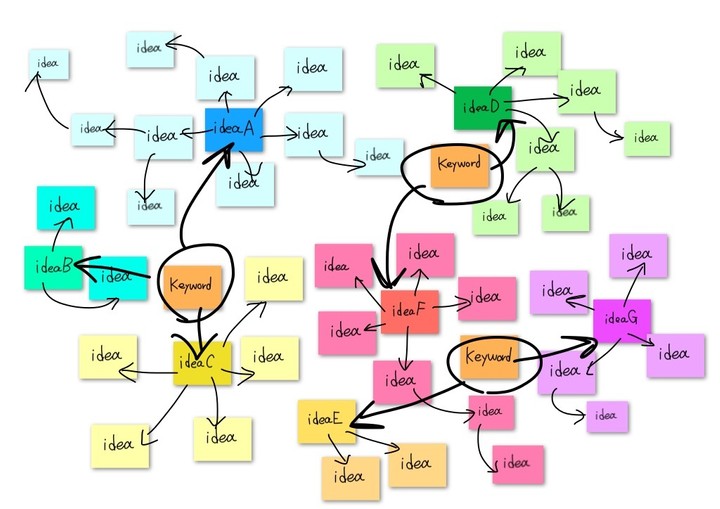
Brainstorming is one of the classic idea-generation methods.
This technique, conceived by A. Osborn, is useful during the early stages of planning when you need to generate a lot of ideas.
Postpone judgment for the moment, and produce as many ideas as you can with an emphasis on speed and flexibility.
Writing anything that comes to mind on cards and putting them on the canvas helps you come up with new ideas based on existing elements.
You can generate many ideas by developing related ideas around a card like an association game, or by combining cards to create new ideas.
Basic flow
- Clarify the problem you want to solve
- Write out keywords, related information, questions — anything in your head — on cards and put them on the canvas
- Write ideas that come to mind from a card and place them around it
- Step back to view the whole picture, move cards around, and let your thoughts wander
- Whenever a new idea comes to mind, write it on a card and place it nearby
- Repeat the steps above, developing ideas radially
By pulling the information out of your head, turning it into cards, and placing them on the canvas, you can come up with ideas more easily.
- Write one idea per card
- Only the essence of an idea or piece of information is needed — no need for polished sentences
- Drawings and pictures are fine too
- Handwriting is fundamental to spreading ideas freely
There is no fixed order for coming up with ideas. Feel free to work however you like — no need to stick to the process above.
Mind Map
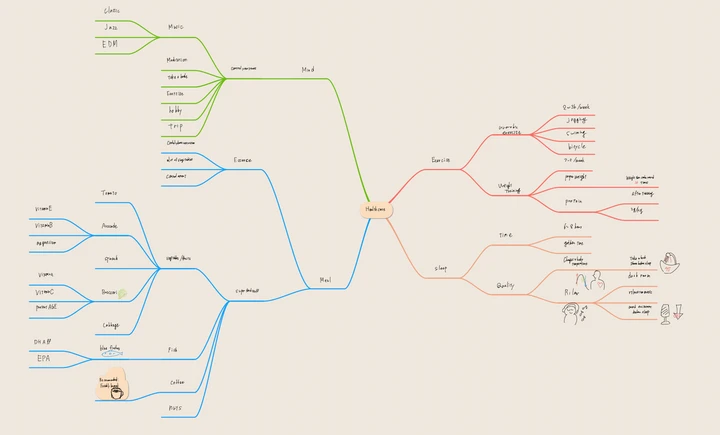
A mind map is a method of developing ideas radially, like the branches of a tree.
It helps you expand ideas and images, and organize your thoughts hierarchically.
Basic flow
- Place the theme you want to explore in the center
- Extend branches from there and fill in ideas and keywords in short phrases
- Add derived ideas beyond them; if a completely different idea comes up, create a new branch
- Moving branches and reattaching nodes organizes the overall structure and deepens your understanding
The goal is not necessarily to draw beautifully or classify neatly, but by its nature a mind map needs a larger canvas, and it helps if each element can be moved freely. With the relation tool, you can easily create mind maps on an unlimited canvas.
KJ Method
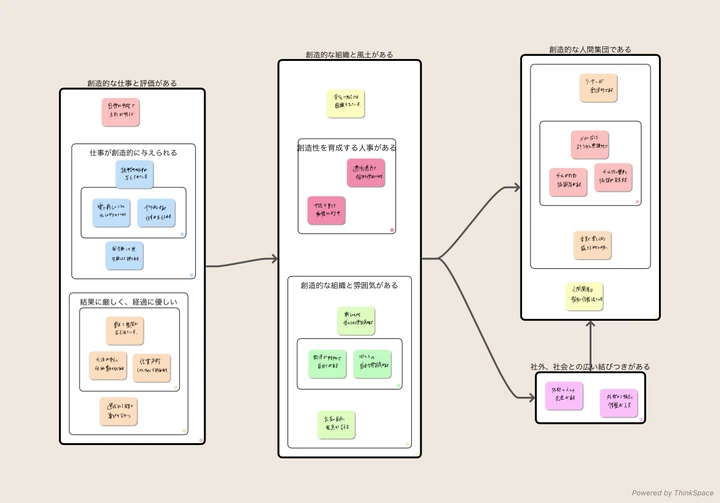
The KJ method combines many fragmentary ideas and pieces of information and extracts their essence,
drawing out the whole picture of a problem and finding the direction of a solution.
It is useful for everything from root-cause analysis to idea generation.
Basic flow
- Decide on a theme
- Collect information and turn it into data
- Group items with high affinity
- Summarize the contents of each group and give it a title
- Repeat this process while moving up the group hierarchy
- Show the relationships between groups
- Use the resulting diagram as a springboard to reach an overall conclusion
Finding new similarities between pieces of information and grouping them from novel angles leads to new ideas.
The grouping tool helps you organize and structure ideas.
Instructions
Basic Operations
Card Tool
How to create a card
- Tap the card button on the navigation bar to switch to card mode
- Tap the canvas to create a card
- Draw content by hand or with Apple Pencil
- Finish editing with the Done button at the top right
How to modify a card
- Tap a card to select it
- While selected, you can:
- Change the card's attributes from the toolbar at the bottom of the screen
- Tap the selected card again to edit its contents
- Pinch the selected card to change its size
- Tap outside the card to deselect it
Branch Tool
How to create a branch and card
- Tap the branch button on the navigation bar to enter branch mode
- Drag and drop from the starting card to the location where you want to create a new card
- Create the card
- Finish editing with the Done button at the top right
- Tap the screen to exit branch mode
How to connect cards
- Tap the branch button on the navigation bar to enter branch mode
- Drag and drop from the starting card to the card you want to connect to
- Finish editing with the Done button at the top right
- Tap the screen to exit branch mode
How to arrange branches
- Select a card
- Tap the option button at the bottom left
- Select the Arrange button (right)
- Cards and branches connected to the right are aligned
How to modify a branch
- Tap a branch to select it
- While selected, you can:
- Change the branch's attributes from the toolbar
- Fix the branch direction with the Lock Direction switch
- Move the knob at the tip of the branch to reattach it
- Tap the reverse button to flip the branch direction
- Tap Text to set a title
Group Tool
How to group items
- Select the group button on the navigation bar to enter group mode
- Encircle the cards you want to group
- Select the Group button on the toolbar to create a group
- To combine groups, encircle them and select Group again
- Repeat the steps above to organize your groups
- Tap the screen to exit group mode
How to modify a group
- Select a group
- While selected, you can:
- Change the group's attributes from the toolbar (arrangement of child elements, color of the cards in the group)
- Tap Text to edit the group's title
How to modify surrounded items at once
- Tap the group button on the navigation bar to switch to group mode
- Encircle the items you want to edit
- Select the Cards button on the toolbar
- The toolbar for changing card attributes appears
- You can change the attributes of the selected cards all at once
You can move the selection by dragging it.
Text Tool
- Tap the text button on the navigation bar to switch to text mode
- Tap the screen to start writing text
- You can change the text attributes from the toolbar
- Tap outside the text to finish editing
Pen Tool
- Tap the pen button on the navigation bar to switch to pen mode
- Draw on the canvas or on cards
Template Editor Tool
- Draw a rectangle to create a template
- Trace across the template to divide it
- Select the template
- Move the lines on the template to transform it
Card Box Tool
- Select the card box button on the navigation bar
- The card box appears from the bottom
- Long-press a card and drag & drop it onto the canvas
Temporary Space Tool
- Select the temporary space tool button on the navigation bar
- The temporary space appears from the bottom
- Drag & drop cards from the canvas into the temporary space
- Long-press a card in the temporary space and drag & drop it onto the canvas
The temporary space is handy when you want to move cards between canvases.
Canvas Links
How to create a canvas from a card
- Select a card
- Tap +canvas
- A canvas is created, linked to that card
- Close the canvas to return to the previous screen
- Select the card again and tap to link canvas
- You will move to the canvas linked to the card
How to link an existing canvas to a card
- Select a card
- Tap the option button at the bottom left
- Tap the Add Link button
- A list of canvases appears — tap the one you want to link
- Select the card and tap the canvas thumbnail
- You will move to the canvas linked to the card
How to set a title for a canvas
- Tap the canvas setting tool
- Enter a title in the title field
- Close the canvas setting screen
Inbox (AI Inbox)
A holding place for material from AI conversations and other apps. Tap “AI Inbox” in the navigation bar to open it.
- Notes sent from ChatGPT / Claude / Claude Code, and text, URLs, and images saved from the share sheet, are listed newest first
- Tap an item to open it. “Make a card (full text saved as memo)” uses the beginning as the card's label and puts the full text in the card's memo
- Select part of the text in the detail view and “Add to Canvas” appears. Only that part becomes a card
- Dragging an item onto the canvas also makes a card. Images become image cards
- Swipe to archive or delete what you don't need
AI connections are set up from the gear at the top right of the inbox → “Send from AI”. See Send from AI to the Inbox for the steps.
Paste button
- Copy text in another app or on another device (Mac, iPad, iPhone) and return to the canvas: a “Paste” button appears
- Tap it and the text becomes a card under the usual paste rules (long text becomes a summary card, with the original saved as a memo)
- Close it with the close button if you don't need it. It won't reappear for content you've already pasted
Explain
- Tap “Explain” in the navigation bar to start listening. Explain the map out loud while looking at it
- What you say is transcribed on the spot. Press “Stop and save” to keep it
- Saved explanations open from “Explanation List”. From the preview you can copy or share them to other apps
Microphone and speech recognition permissions are required. You'll be asked the first time.
Floating panels
- Memos, the card box, the inbox, and the explanation list appear as panels floating above the canvas. Drag the handle at the top to move them
- Drag an edge to resize
- Press “Pin” at the top right of a memo and it stays open after you deselect the card. Pin several memos to compare them
Camera / Images
- Tap “Camera” in the navigation bar and take a photo: it is added to the canvas as an image card (iPhone / iPad)
- Tap “Images” to add photos or screenshots from your photo library as image cards
Handy for photographing notebooks or whiteboards and laying them out, or for collecting screenshots of things that caught your eye.
Send from AI to the Inbox
You can send conversations from ChatGPT, Claude, or Claude Code to your ThinkSpace inbox. The connection URL is https://mcp.thinkspace-app.com/mcp. Setup steps, connecting with an app code (for Sign in with Apple users), revoking a connection, and what data is sent are on the page below.
Templates
Here are various methods for generating ideas.
Idea Box
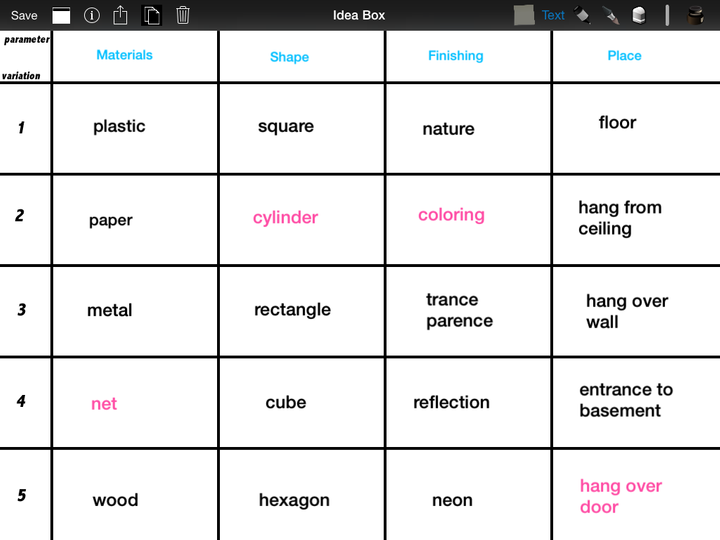
The Idea Box is a method of combining the parameters inherent in a challenge to generate new ideas.
It is modeled after the "morphological box" devised by Dr. Fritz Zwicky.
- Describe your challenge clearly
- Write out the parameters of the challenge (characteristics, elements, variables, aspects)
- List the variations under each parameter
- Try out different combinations
SCAMPER
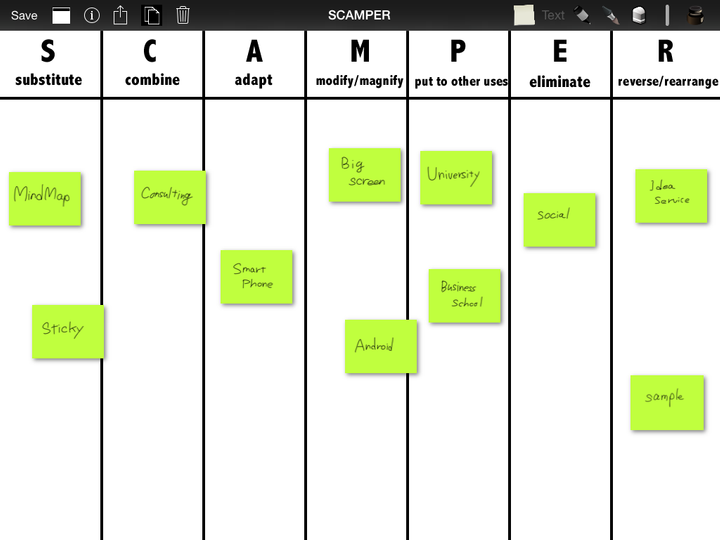
SCAMPER is a checklist of questions for generating new ideas, suggested by Alex Osborn.
Specify the challenge that needs ideas, then apply the SCAMPER questions to think of new ones.
| Letter | Question |
|---|---|
| S — Substitute | What can be substituted? |
| C — Combine | What can be combined? |
| A — Adapt | What can be adapted? |
| M — Modify or Magnify | What can be modified or magnified? |
| P — Put to other use | Can it be put to other uses? |
| E — Eliminate | What can be eliminated or reduced? |
| R — Reverse or Rearrange | What can be reversed or rearranged? |
Mandala Chart
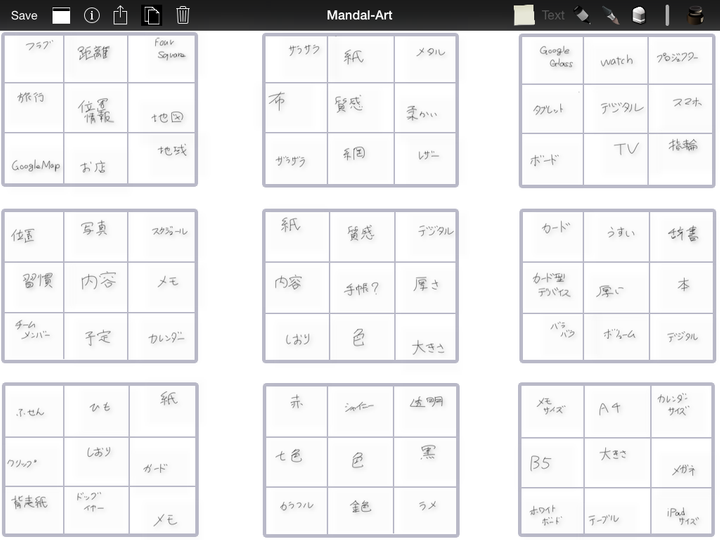
The Mandala Chart is a creative-thinking method that develops ideas around a starting point using mandala cells.
It was developed by Yasuo Matsumura, founder of Clover Management Research, and matches the radial way the mind works when generating ideas.
- Write your challenge or idea in the center of the mandala
- Write the key factors composing the challenge in the eight surrounding cells
- Develop each of those cells further in the surrounding mandalas
The Business Model Canvas
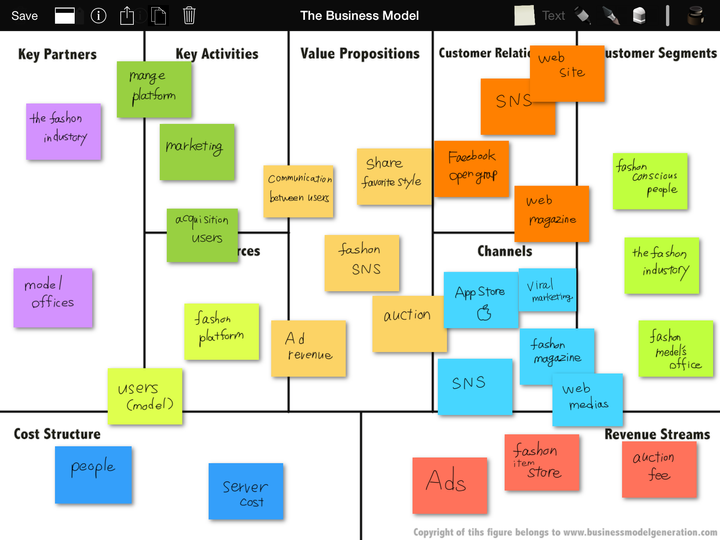
The Business Model Canvas is a canvas for describing business models in a clear way.
It was introduced in Business Model Generation (Alexander Osterwalder & Yves Pigneur, Wiley, 2010).
With its nine building blocks, you can sketch the blueprint of a strategy. See the book for details.
The copyright of the figure belongs to www.businessmodelgeneration.com.
Idea Grid
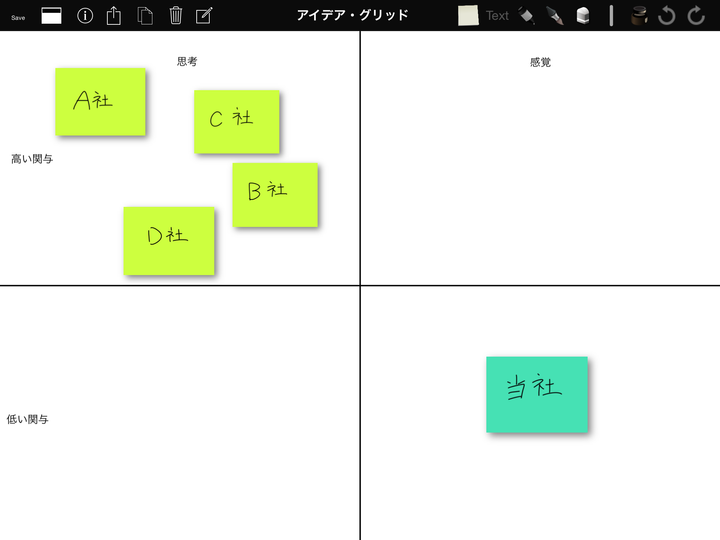
The Idea Grid is an analysis tool based on the FCB grid.
Survey the market and classify existing products and services along two axes.
This simple tool gives you new insight into untapped markets.
5W1H Format
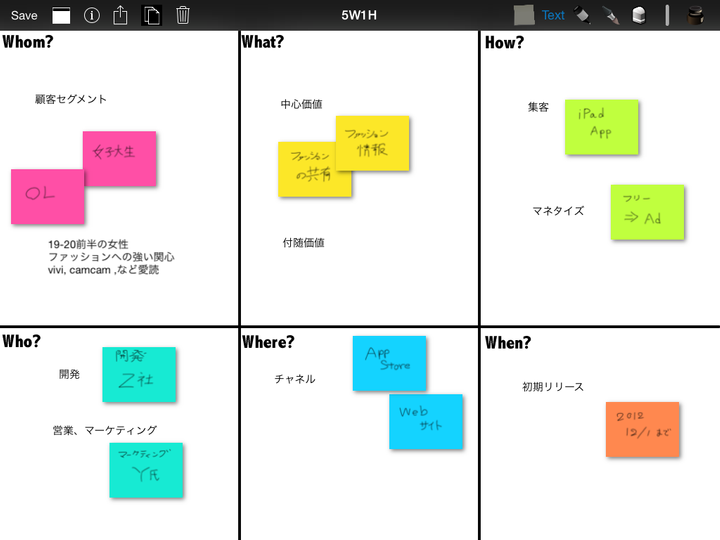
The 5W1H format is a well-known format for drawing the outline of a plan.
Fill in the 5W1H from the perspective of how your idea can be realized.
The Empathy Map
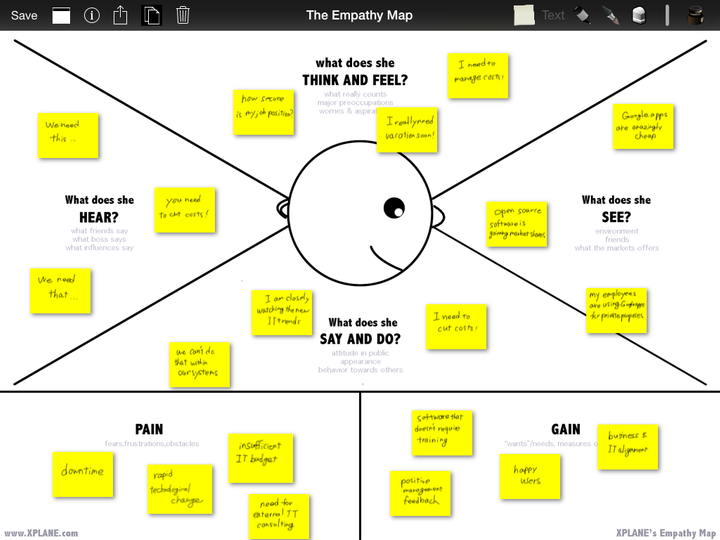
The Empathy Map is a simple customer-analysis tool developed by XPLANE.
Pay attention to your customers' voices and write down the insights you gain on sticky notes.
Understanding your customers well is essential to building a better business.
Visual Thinking
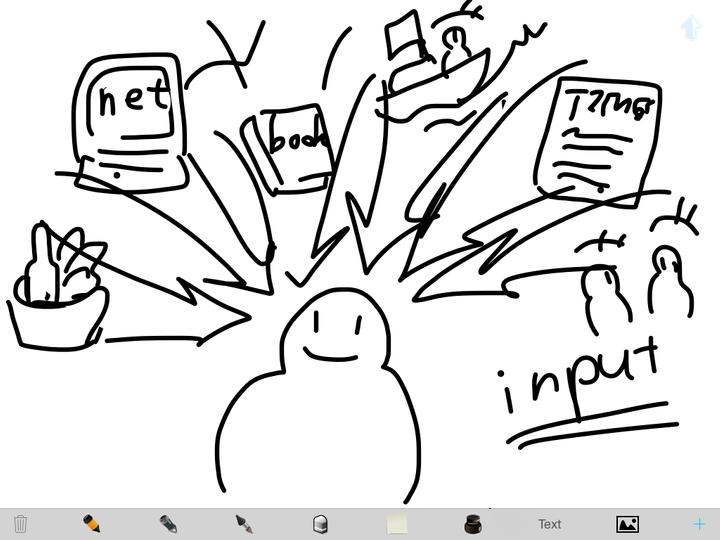
Thinking in pictures is effective when generating ideas.
Drawings can contain a huge amount of complex information — a simple drawing can express ideas that would otherwise require many words.
Exporting a Canvas
Canvases can be exported in the following formats:
- Image
- Text — select a card to export the content along the branches that extend from it
Transcripts saved with “Explain” can be shared from the explanation preview.
References
Books for learning about ideas and planning.
Business Model Generation
Alexander Osterwalder & Yves Pigneur / Wiley / 2010
A classic that systematically covers how companies generate innovation.
It introduces the Business Model Canvas, the Empathy Map, and more.
Thinkertoys
Michael Michalko / Ten Speed Press
A world-famous handbook of creative-thinking techniques.
It introduces the Idea Box, SCAMPER, the Idea Grid, and many other methods.
Kougu — Do you have tools for thinking?
Masaharu Kato / Hankyu Communications / 2003 (Japanese)
A well-known book presenting fundamental approaches and concrete skills ("thinking tools") for ideas and planning.
Feedback
Please help us improve the product by sending your feedback.
Send your name, email address, and message to the address below.
Contact
If you have any questions about the product, feel free to contact us.

Mail: razer006@gmail.com